

Agents: Your Personal AI Specialists in Octop
Agents are the core unit in Octop. Each user can create and run multiple agents simultaneously, and every agent operates in complete isolation — its own workspace directory, its own LLM provider settings, its own enabled skills, and its own conversation history. This lets you maintain, for example, a focused coding assistant alongside a general-purpose research assistant, without either one bleeding context into the other.
Agent attributes
When you create an agent, you configure the following attributes:
Each agent maintains its own conversation history, channel connections, and cron jobs. Switching between agents in the web UI or CLI does not mix their histories or settings.
Create an agent
Open the web UI at http://127.0.0.1:8088 and go to Agents. The page has three tabs — My agents, Built-in experts, and Expert market — and a Create from built-in expert button that seeds a new agent from a template.
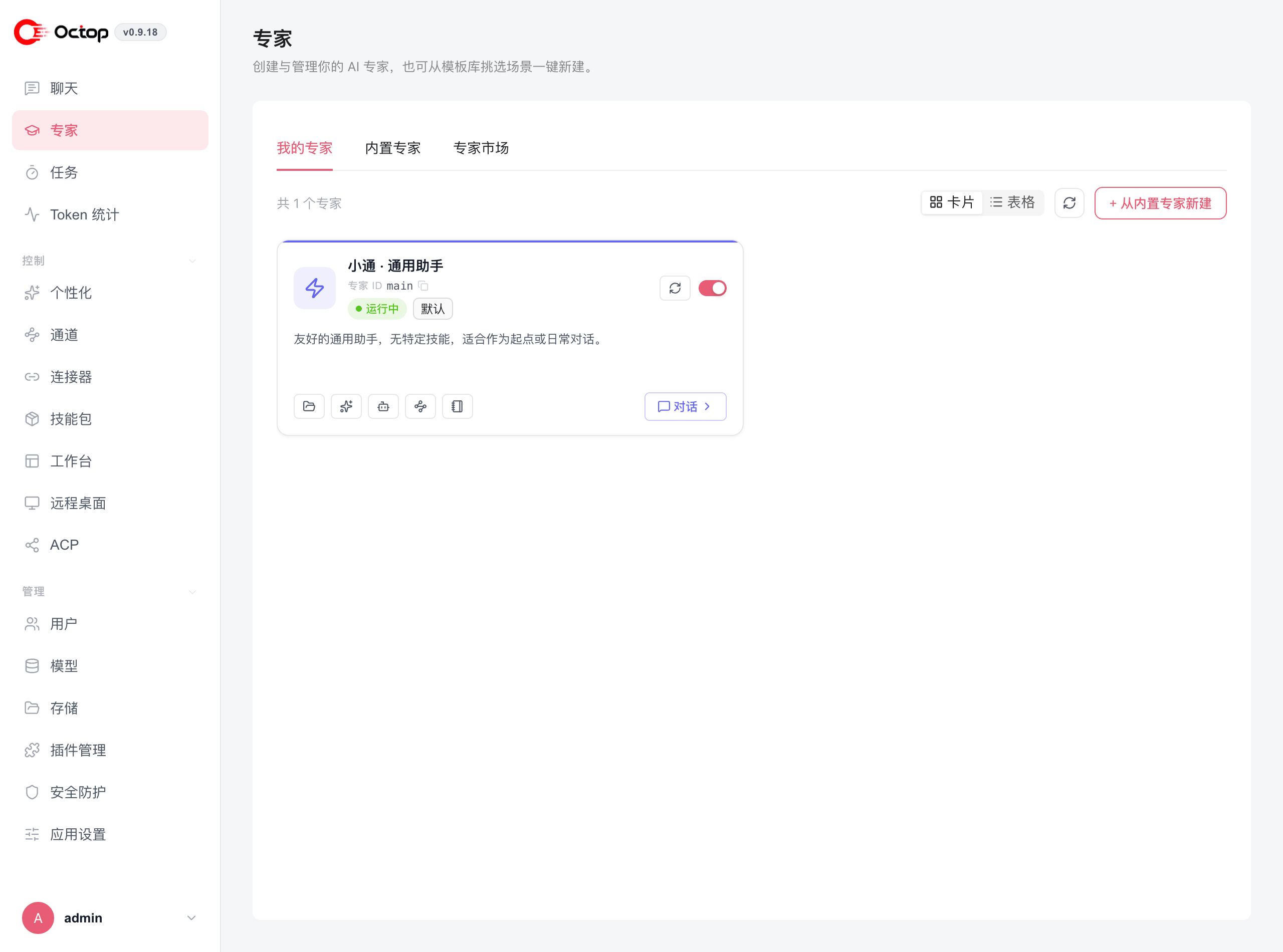
octop init creates a default main agent so you can start chatting immediately. That default agent uses home-directory storage, the same as agents you create in the web UI.
For CLI create, list, start, stop, and reload commands, see Agent commands.
Agent lifecycle
Each agent card shows its runtime state and carries a toggle to start and stop it, plus a reload control for picking up configuration changes.
Stopping an agent terminates its active sessions on all connected channels. Any in-progress message will not receive a reply. Restart the agent to resume.
Deleting an agent permanently removes its workspace under ~/.octop/agents/<id>/. The web UI and CLI both warn before confirming. This cannot be undone.
Per-agent configuration
Skills, sub-agents, personas, memory, and channels are all configured per agent under Personalization. Pick the agent at the top of the page, then switch between the tabs:
Expert library
Octop ships a bundled expert library — pre-configured agent templates for coding, research, writing, and more. Experts are templates, not running agents. Instantiating an expert creates a new, independent agent seeded with that template's configuration.
Browse them under Agents → Built-in experts and Agents → Expert market, or see Experts & Personas.
Share an agent
When you create an agent you can attach default knowledge bases and connector instances. New chats for that agent start with those selected. You can still change the selection per turn.
The chat sidebar and @ picker list running experts only. In the composer, @ can also mention a workspace file. Clicking a skill in chat inserts /slug into the composer.
When you create or edit an agent, turn on Shared so other people on this instance can open it. Only the owner can change its settings or files. Shared-expert skills are available in chat.
Run an agent in Docker
Administrators add a Docker Sandbox or OpenSandbox under Management → Storage. When you create an agent, pick that storage backend so the agent runs in an isolated sandbox instead of on the host disk. OpenSandbox creates a remote sandbox when the expert starts and destroys it on stop; enabling the backend installs the official SDK.
- Sandbox scope chooses how containers are shared: one per expert, one per user, or a fixed sandbox.
- Deleting the agent does not delete the container.
- You can browse container files in the workspace viewer when the backend uses a Fixed scope.
In the workspace viewer you can open Word (.docx) files as Markdown and save them back. Headings, bold, italic, lists, and tables are kept; complex formatting is simplified.
Skills
Open Personalization → Skills to enable skills for the current agent. Use the Skill market tab to install from SkillHub. Reusable sets for the whole instance live under Skill packages in the sidebar: import a ZIP, then attach the package to an agent, or copy selected skills either way (copy into the workspace, or push a workspace skill into a package).
Experts are a great starting point when you want a task-specialist agent. Pick the closest template, instantiate it, and then fine-tune the system prompt and skills rather than building from scratch.