

Automate Recurring Agent Tasks with Octop Cron Jobs
Octop lets you schedule your agents to run prompts automatically on a cron schedule — useful for daily summaries, morning briefings, or recurring checks. A cron job fires without any manual input, so your agents can deliver results while you focus on other work.
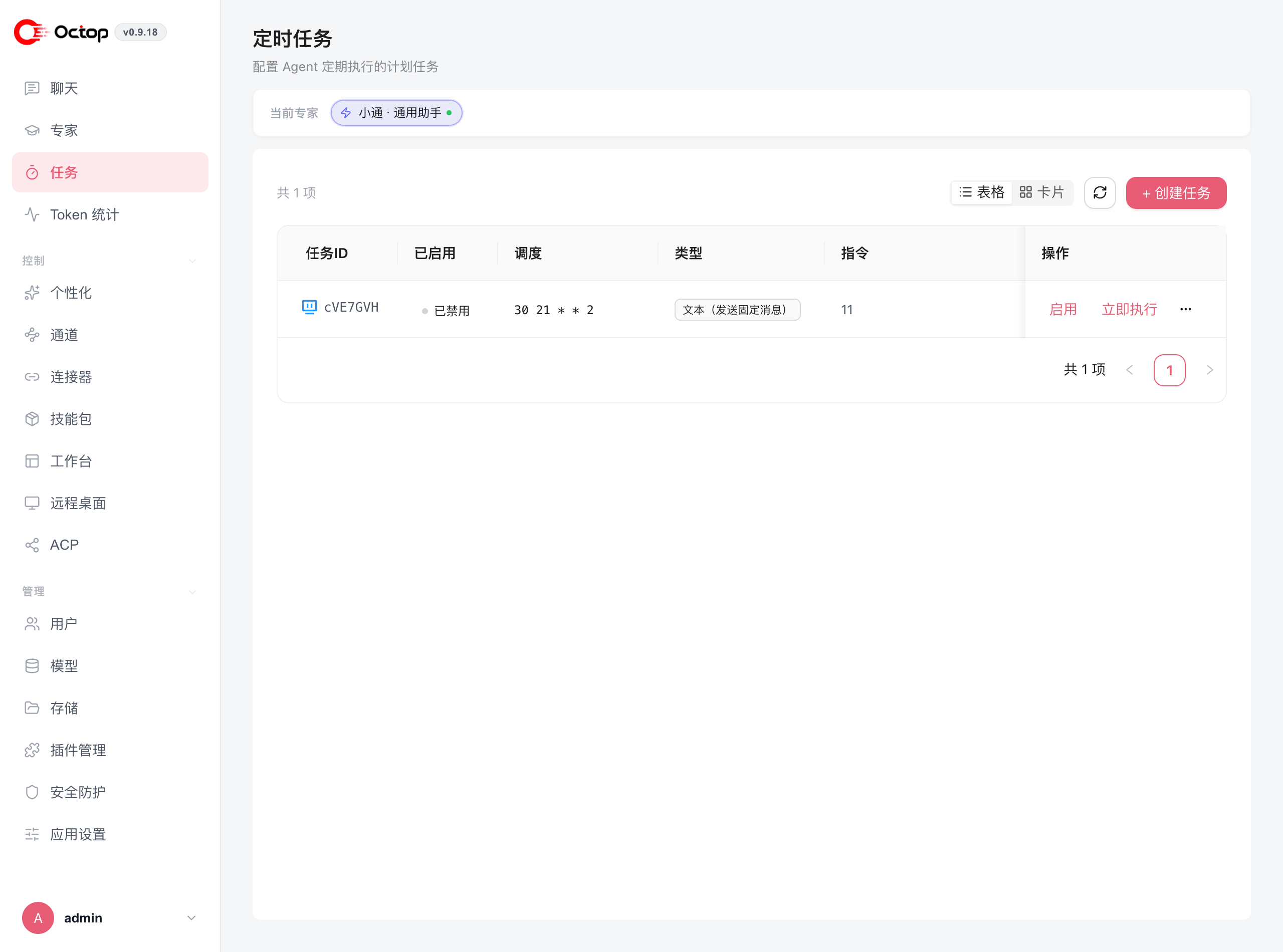
How cron jobs work
Every cron job has four parts:
- Name — a display label in the task list. The web UI asks you to fill one in. The API can omit it and derive a label from the prompt.
- Trigger — when the job fires (a cron expression, an interval, or a one-time timestamp)
- Prompt — the message sent to the agent (up to 2,000 characters)
- Task type —
Agenthas the LLM process the prompt and generate a response;Textpushes the prompt directly as a plain message without LLM involvement
Create a cron job
Open the Tasks section
Go to Tasks in the sidebar and select the agent the job belongs to.
Start a new job
Click Create task.
Name the job
Enter a display name so you can tell jobs apart in the list.
Set the trigger
Enter a cron expression (for example, 0 9 * * * for 9 AM daily) or use an interval shorthand such as interval:30 for every 30 minutes.
Write the prompt
Type your prompt in the prompt field. The limit is 2,000 characters.
Choose the task type
Select Agent to have the LLM process the prompt and generate a reply, or Text to send the prompt directly as a message.
Save
Click Save. The job is now active and will fire on the next matching trigger.
Trigger formats
Monitor and run jobs
The task list shows each job's schedule, type, prompt, last run time, and last status, so you can confirm a job is firing as expected. Each row carries Enable and Run now actions — Run now triggers the job immediately without waiting for its next scheduled time, which is the quickest way to verify a new job works.
For CLI create, list, delete, and run-now, see Channel & cron commands.
Set the OCTOP_DEFAULT_TIMEZONE environment variable or add a "default_timezone" key to your config.json to control which timezone Octop uses when evaluating cron expressions. Without this, the server's system timezone is used.