

Set Up IM Channels in Octop
IM channels let your team talk to Octop agents through the chat tools they already use every day. When someone sends a message on Feishu, WeCom, DingTalk, or Telegram, Octop routes it to the linked agent and replies in the same thread — no need to open the web UI. Each channel belongs to exactly one agent, so you control which agent handles which platform.
Where to configure channels
Channels are configured per agent:
Select the agent at the top of the page, then toggle on the platform you want and enter its credentials.
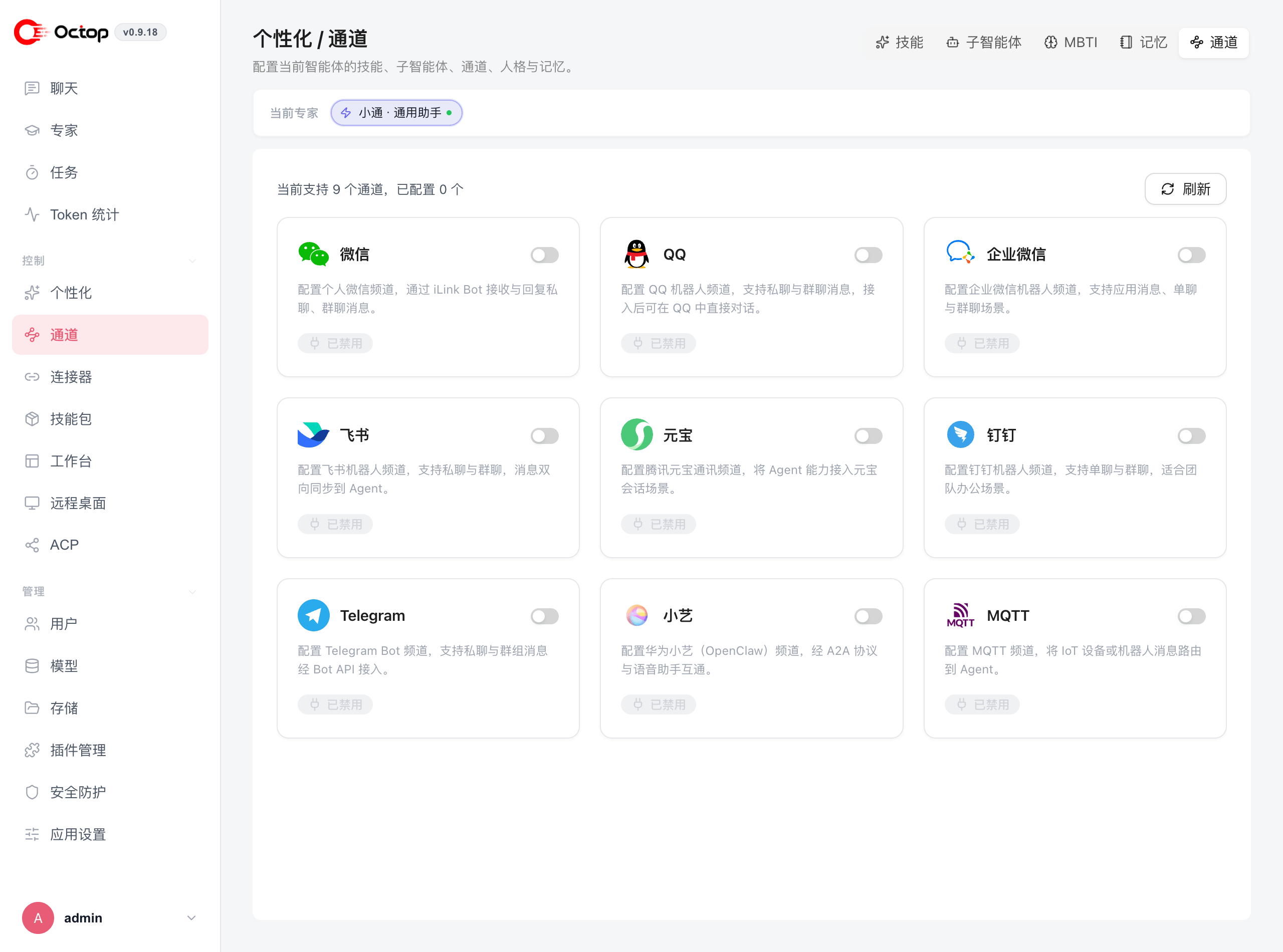
Platform setup
Prefer QR registration in the channel drawer: generate a Feishu AI bot QR code, scan it with Feishu Scan, then confirm on the phone. Octop fills in and saves the credentials.
Or create a Feishu app in the Feishu Open Platform and note down the App ID and App Secret.
Enable the channel
Toggle on Feishu under Personalization → Channels.
Bind the bot
Click the QR button and scan with Feishu, or fill in the App ID and App Secret from your Feishu app settings.
Register the webhook
If you created the app yourself, copy the webhook URL shown by Octop and paste it into the Event subscription section of your Feishu app configuration, then save the Feishu app settings.
Verify
Send a message to the bot to confirm the channel is receiving events. Replies inside a Feishu topic use the topic reply API (reply_in_thread).
Octop also ships a guided terminal wizard that walks through the same flow:
Choose how replies appear
Open a channel's settings drawer and use Message display → Response mode:
- Final only (Recommended) sends one completed reply after the agent finishes. Progress narration emitted before tool calls is hidden, while generated media is delivered with the final text.
- Live progress keeps the staged, streaming updates for workflows where users need to follow execution.
New external IM channels created from the web UI default to Live progress. Show thinking and Show tool hints remain separate display controls. QQ private chat ignores this switch and uses c2c_streaming instead.
To manage channels from the terminal (list, test, delete, feishu-setup, bind), see Channel & cron commands.
Each agent can have multiple channels active at the same time. All messages are processed by the same underlying agent, so the conversation context stays unified regardless of which platform a user messages from.