Browser Automation and Terminal AI Access in Octop
Octop's Workbench puts a remote browser and an AI-assisted terminal side by side in the web UI, so you can watch and take over what an agent is doing in real time. Remote desktop and remote phone have their own pages.
Browser
The browser tab drives a real Chromium instance over CDP with persistent profiles, so agents can navigate, fill forms, and capture screenshots — and you can step in at any point.
Enable the browser
The browser requires the browser extra. Install it using the method that matches how you installed Octop:
After installation, restart octop run, then open:
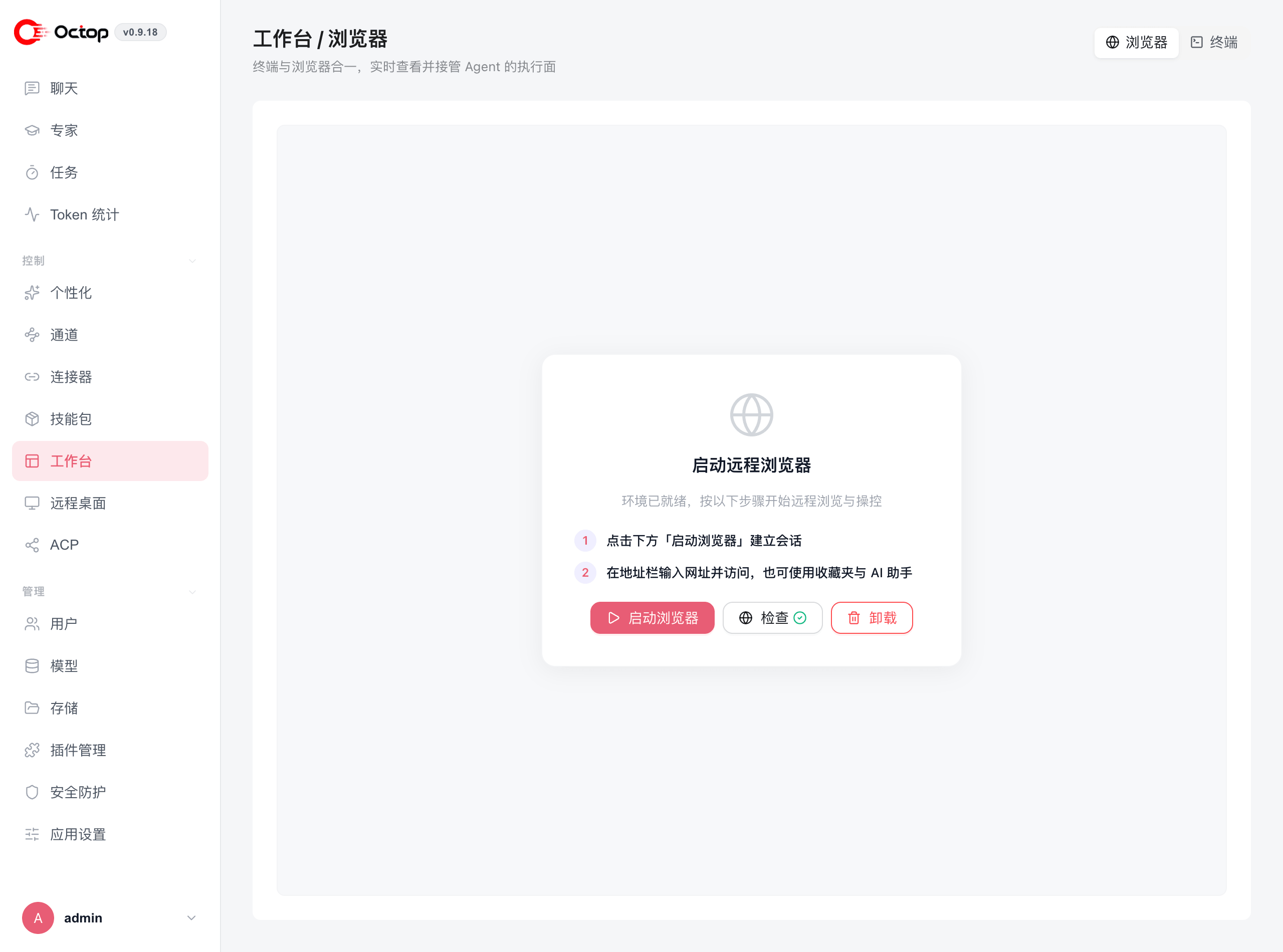
Click Check to confirm the environment is ready, then Launch browser to start a session. Type a URL in the address bar to browse; bookmarks and the AI assistant are available alongside.
Each Octop user gets an isolated Chrome profile. Click Shut down browser when you want to stop the local Chrome process. Octop also reaps an idle local Chrome after 30 minutes (OCTOP_BROWSER_IDLE_TIMEOUT_MINUTES). Login cookies stay on disk, so the next launch keeps the session.
The Docker image does not ship Playwright Chromium. Install the browser extra if you need this tab.
Use the browser in chat
Ask your agent to browse in plain language. For example:
- "Go to news.ycombinator.com and give me the top 5 headlines."
- "Take a screenshot of https://example.com."
- "Fill in the sign-up form at [URL] with these details…"
When an agent is driving the browser, you can take over the same session. Your clicks and typing take over until you hand control back.
Terminal
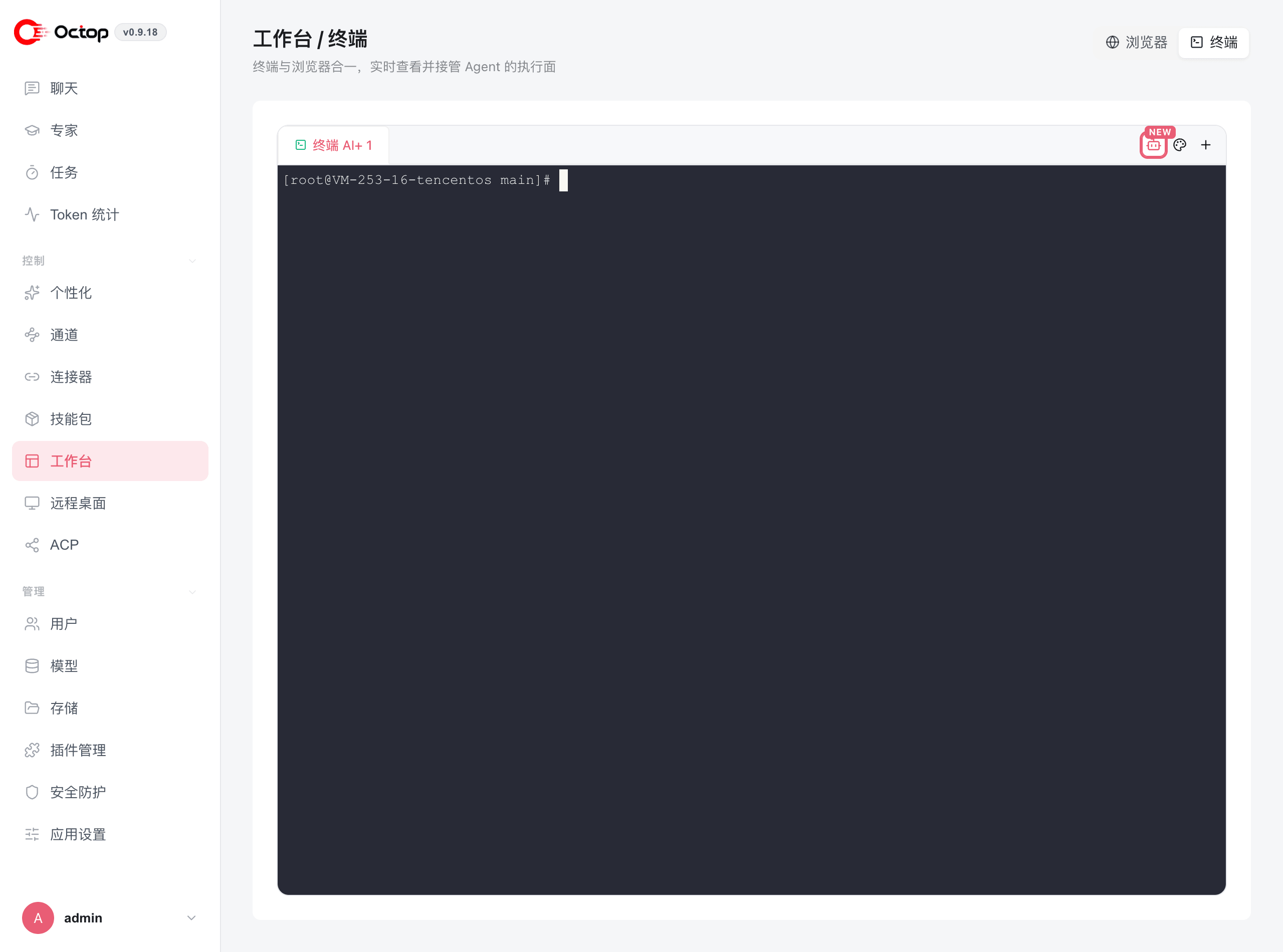
The Terminal tab in the Workbench embeds a full interactive shell in the browser. You can open several session tabs, run commands directly, and ask the agent to suggest commands, explain output, or diagnose errors — without leaving Octop.
Workbench Terminal and the chat Dock terminal share the same session, so commands and output stay aligned whichever surface you use.
Related control pages
- Server desktop — Remote desktop
- Phone — Remote phone
Guardrails
Because the browser and terminal give agents real reach into your machine, Octop centralises the safety controls under:
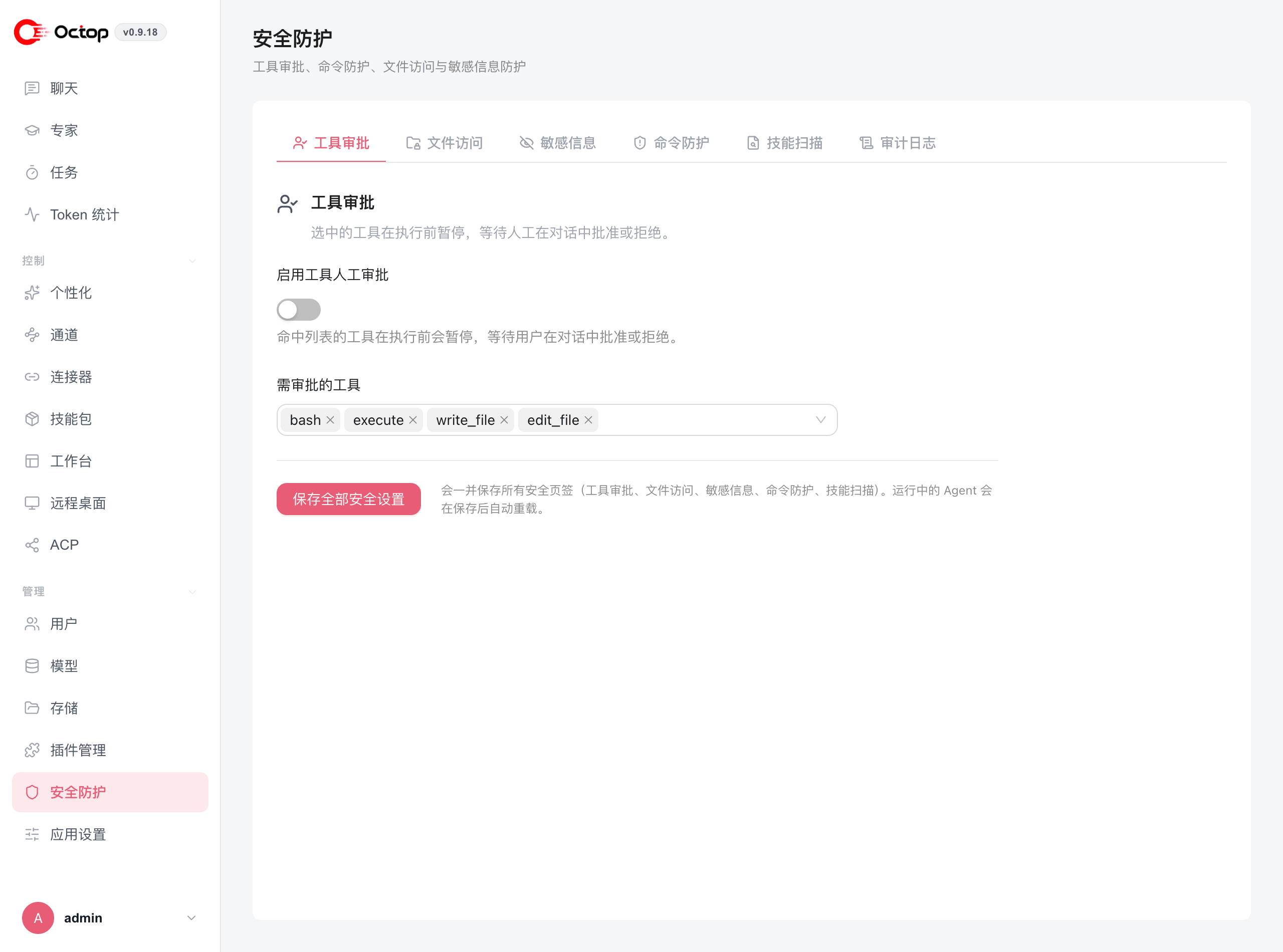
The page is split into six tabs:
Tool approval ships enabled for the highest-risk tools — bash, execute, write_file, and edit_file — but the master Enable manual tool approval switch is off by default. Turn it on and any tool in that list pauses for your confirmation before it runs.
Saving applies every tab at once, and running agents reload automatically afterwards.
Review command protection and file access rules before giving agents shell access in a production environment. Overly permissive rules could allow an agent to run destructive commands. Start restrictive and expand only as needed.
To enable or disable skills from the CLI, see octop skills.