Migrate from Hermes Agent to Octop
One command reads a Hermes Agent setup into a single Octop expert: model providers, persona and memory files, skills you installed, MCP servers, and chat channels. The command only reads the source directory. It does not change or delete those files, and both products can keep running. This applies to Octop 1.0.3b5 and later.
The steps match OpenClaw. Use hermes in place of openclaw. This page covers the Hermes paths, credentials, and differences. LightClaw uses a backup archive. See Migrate from LightClaw.
What moves
Items that stay behind are listed at the end of the result:
- Bundled Hermes skills. Skills recorded in
skills/.bundled_manifestare skipped. Only skills you installed move over. - Scheduled jobs. Create them under Automation, or with
octop cron create. See Cron jobs. - MCP servers that use SSE. Switch the server to a Streamable HTTP URL, then add it under Connectors.
- Model accounts that can only sign in with OAuth, and providers Octop has no matching type for.
- Channels Octop does not support yet, such as Slack, Matrix, and Mattermost.
Before you start
Install and initialize Octop on the machine that already has Hermes Agent.
The command reads ~/.hermes by default, and it also honors HERMES_HOME. Pass --from when the directory is somewhere else.
Create an expert to receive the setup. On Experts, click New expert, or run octop agent create assistant. Copy the Expert ID under the name on the card. The examples below use 1S3N3P.
Leave Hermes Agent running while you migrate. Stop the old bot only before you enable a chat channel.
Preview and run
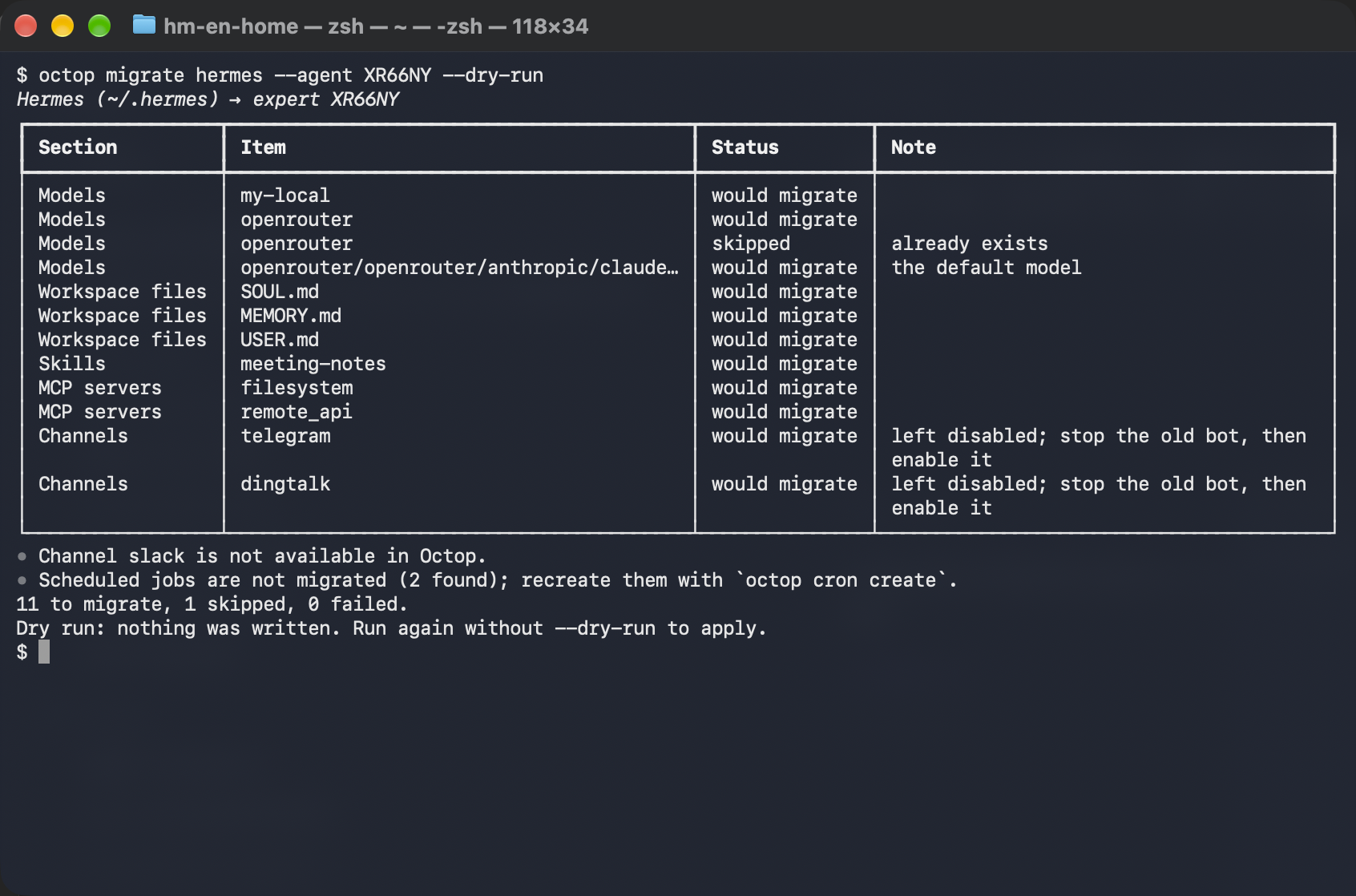
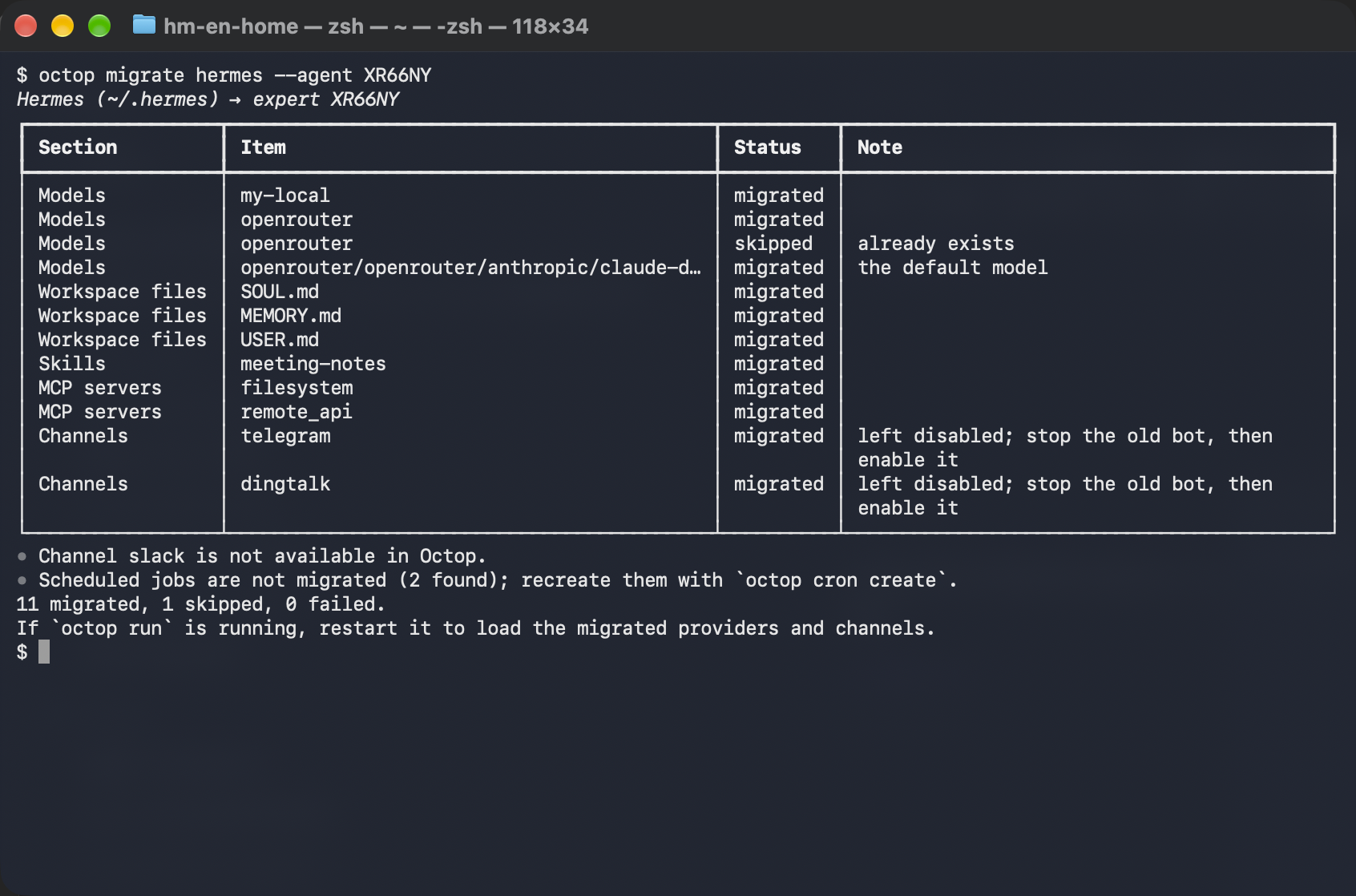
A preview writes nothing. Each row is would migrate / migrated, skipped, or failed. The Note column says why a row was skipped or failed.
Restart Octop while it is already running so the new providers and channels load. For a system service, run octop service restart. If you started it with octop run in a terminal, press Ctrl+C and start it again.
Check the web UI
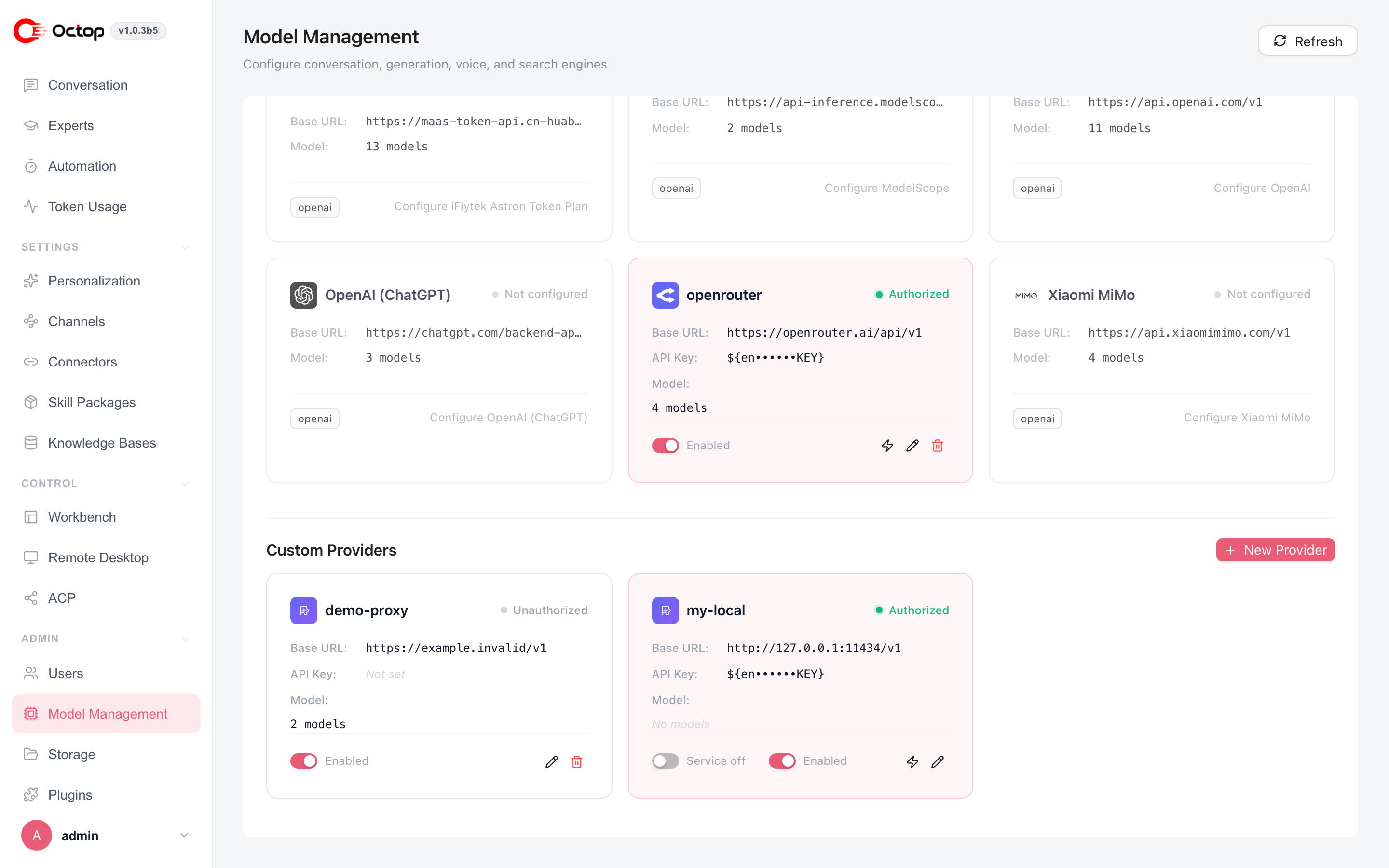
- Models — Open Admin → Model Configuration. When a row says the API key was not found, add the key there.
- Persona and memory — On the expert card, click Edit Workspace.
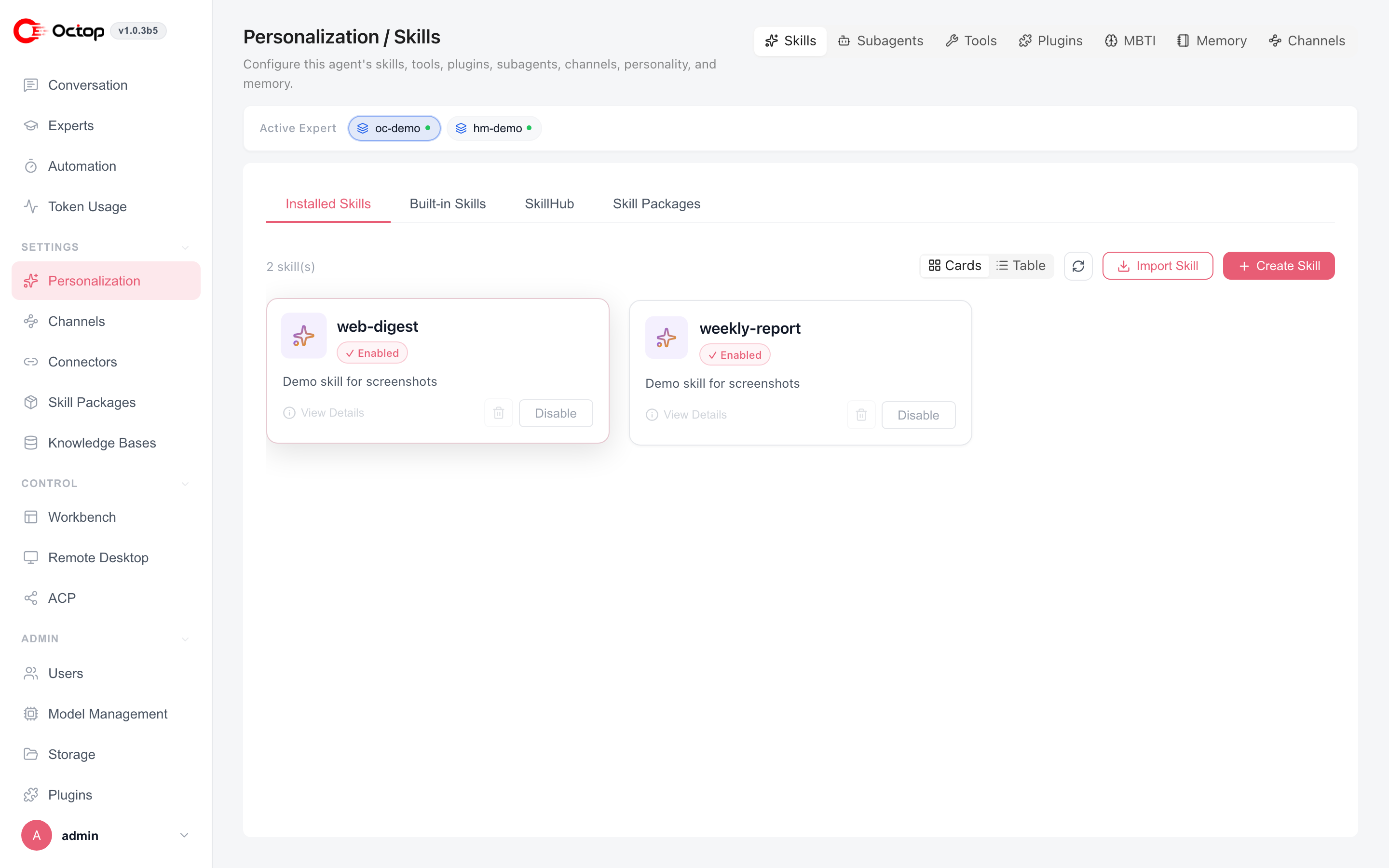
SOUL.md,MEMORY.md, andUSER.mdare in the workspace root. - Skills — Open Personalization → Skills. Migrated skills are installed and enabled. Bundled skills are not listed.
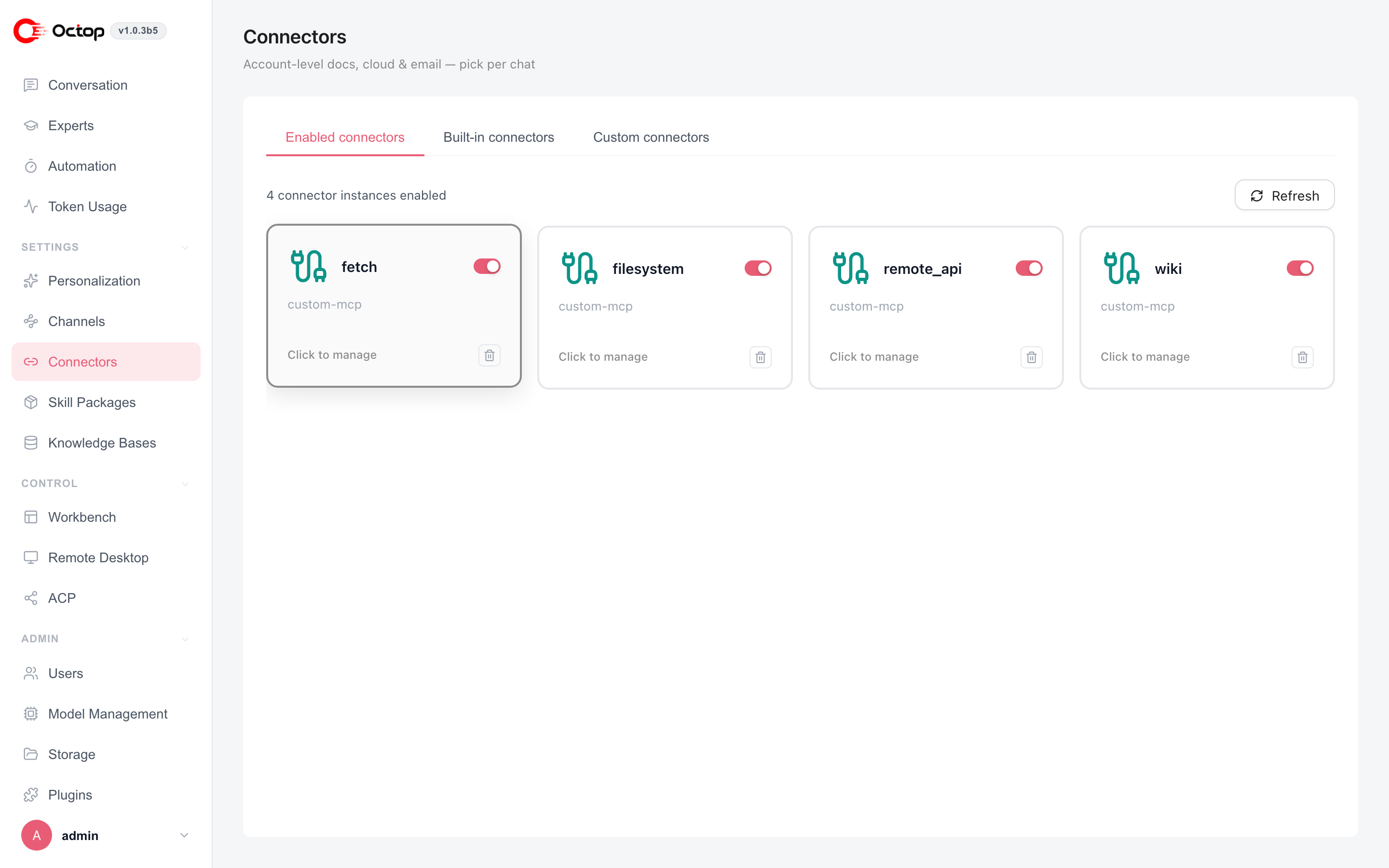
- MCP — Open Connectors → Enabled connectors. Open a card to view or change the command, URL, and headers.
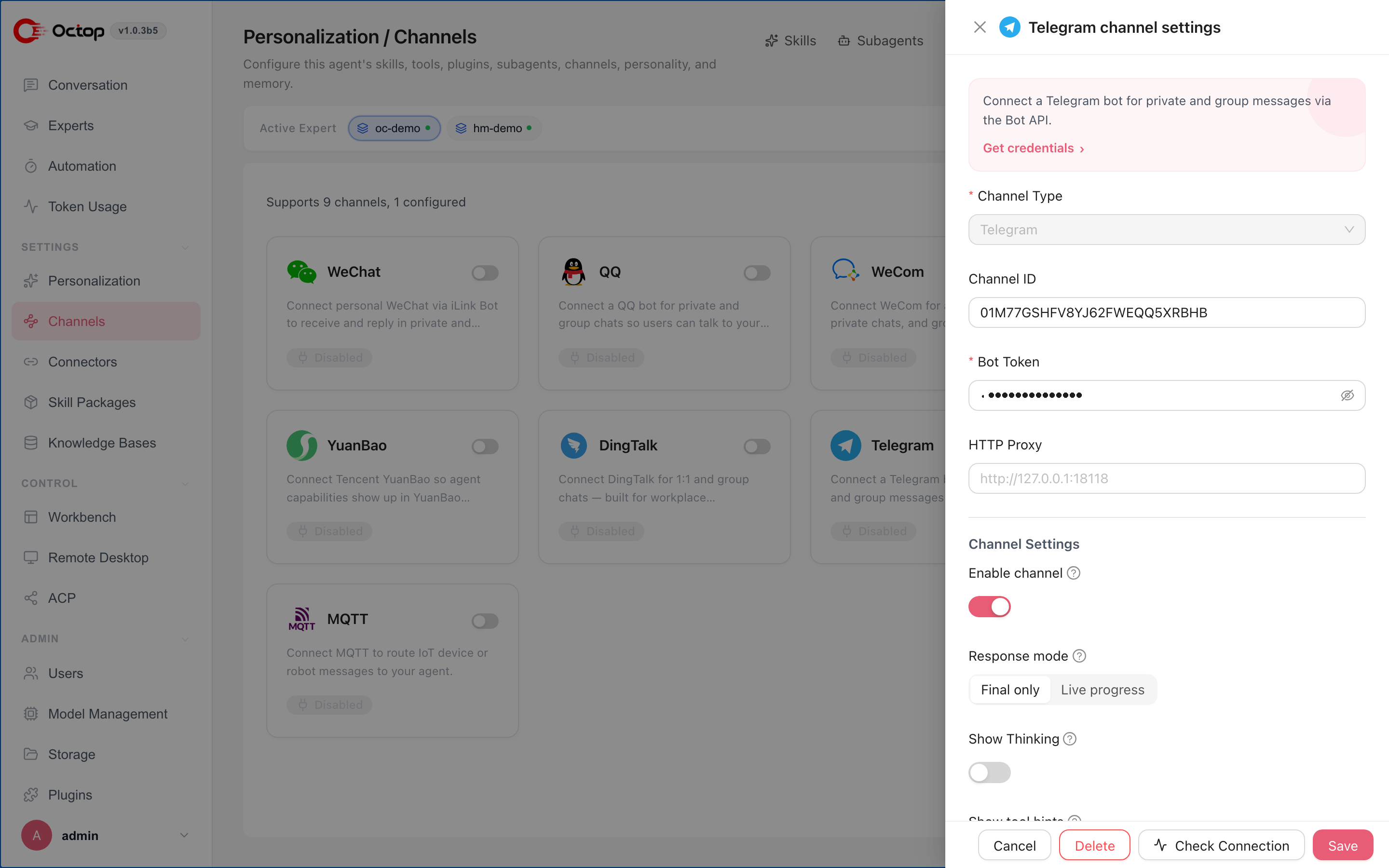
Turn on chat channels
If Hermes Agent and Octop both own the same bot, one message is answered twice, or the two sides compete for it. Migrated channels stay disabled for that reason.
Stop the old bot
Stop the Hermes Agent gateway or service, and confirm it no longer replies.
Check the credentials
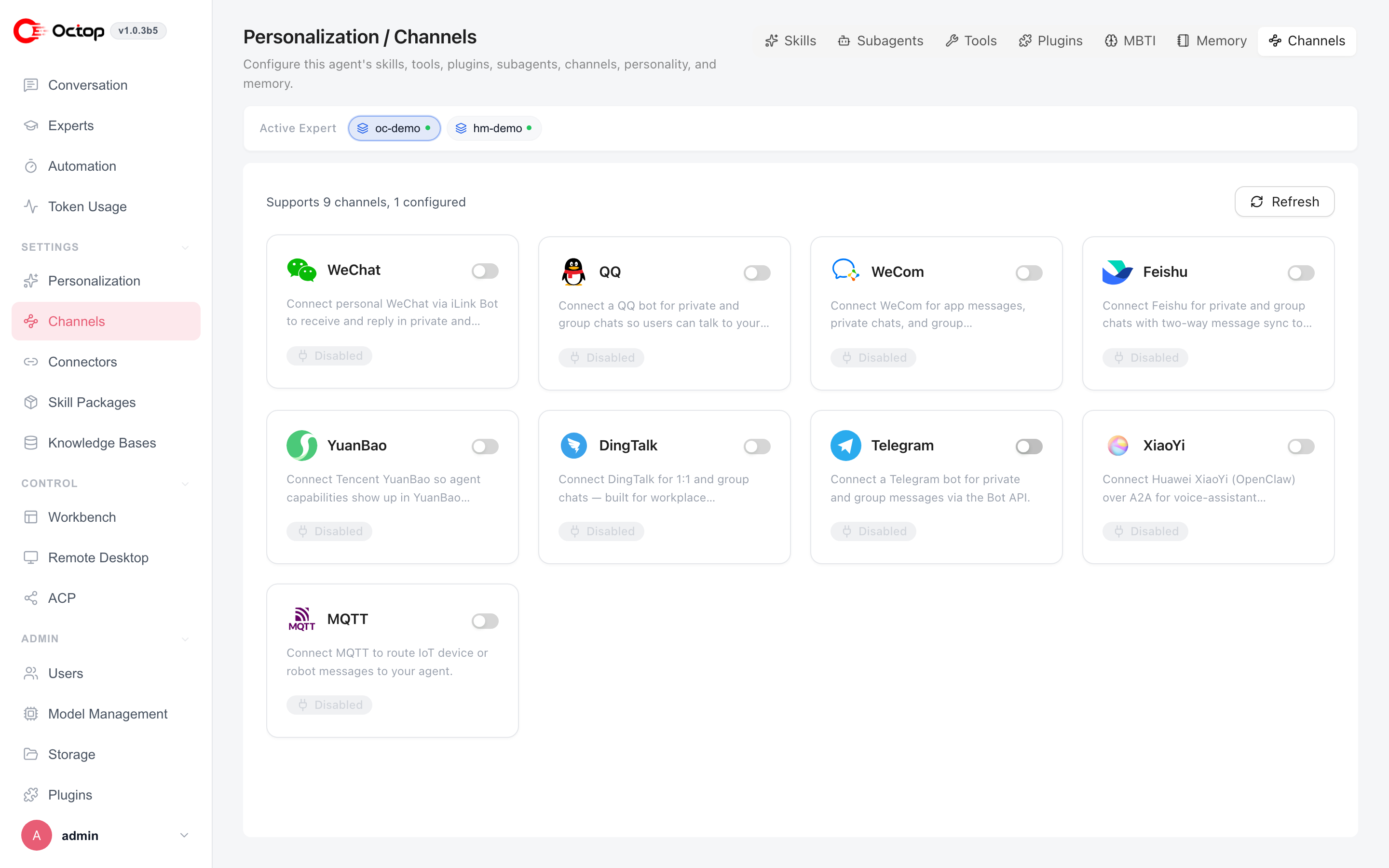
Open Personalization → Channels. Open a channel card, confirm the token, App ID, and other credentials came across, then click Check Connection.
Enable it
Turn on Enable channel and save. Send the bot a message to try it.
Options
You can run the command again. Anything that already exists is skipped. --overwrite replaces workspace files, skills, and the default model. Providers, MCP connectors, and channels are never overwritten. Delete those entries in the web UI first, then run the command again.
Common questions
The command says no Hermes installation was found. Pass the directory with --from, for example --from /srv/hermes.
The command says --agent is required. Add --agent, or run octop agent use first.
A row says failed. Read the Note column, fix that item, and run the command again. Items that already migrated are skipped. The command exits with status 1 when any item failed.
After migration you cannot select a model. Confirm Octop was restarted, then check the provider API key and base URL under Admin → Model Configuration.
You also want OpenClaw in the same expert. Run that command as well. The later command skips persona files, skills, and a default model that already exist. Create a separate expert when you want them kept apart.