

Expert teams: give one job to several experts
Create a team when one expert is not enough. A team is a host that assigns research, writing, or analysis to members, and everyone answers in the same room. The host can answer a simple question. Specialist work goes to the member who fits it.
Use it when one request needs both a proposal and a review. The host takes your message, sends the research to one member and the draft to another, and both replies stay on one timeline.
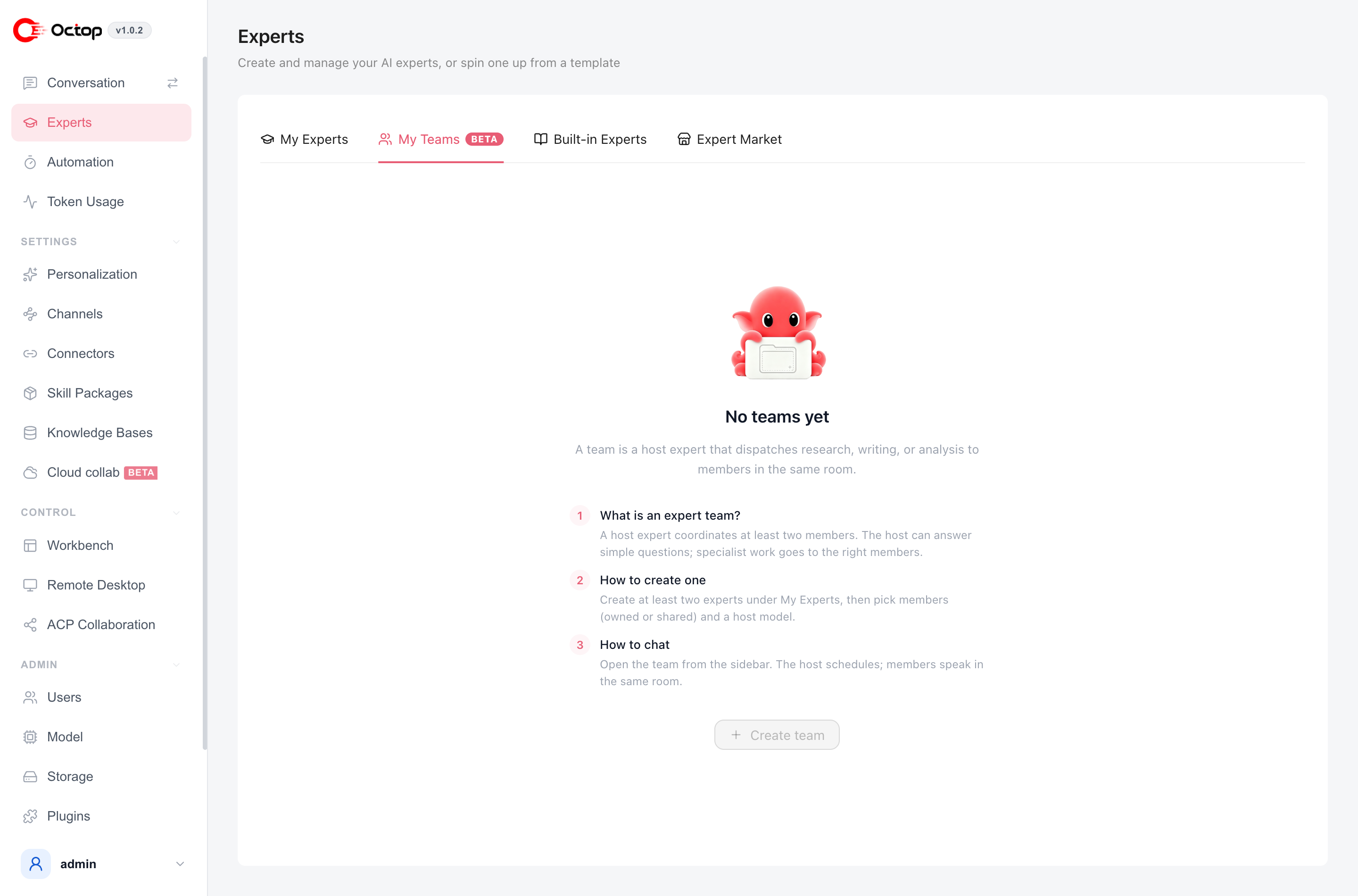
Create one and send the first message
Prepare the members
Under Experts → My Experts, create at least two ordinary experts first. They can be yours, or experts shared with you. Members must be local experts. An expert on a linked peer cannot join a team you create on this instance.
Create the team
Open Experts → My Teams and click Create team. Enter a team name, choose the Host model, select at least two Members, and save.
Ask in the team
Open Conversation, switch the sidebar to Teams, or open the team from its card. Your message goes to the host first. Member replies appear on the same timeline.
Leave greetings and routing with the host. Let members do the specialist work so each reply in the room is easy to attribute.
Limits you will run into
- A member has to be an ordinary expert. A team cannot contain another team.
- This version does not share the team itself. Only the creator can chat in the team room, change members, or bind channels.
- Channels bind to the host only. Member replies still show up on that channel. See IM channels.
- While a member has an assignment in progress, you cannot remove that member or delete that expert.
Teams on another Octop
After you link another Octop under Cloud collaboration, remote teams show up under Cloud in the Conversation sidebar and on the teams tab once the connection is up. Those remote experts cannot be added to a team you create locally.
Next steps
- Agents — create the members first
- Cloud collaboration — use a team on another instance
- IM channels — connect the host to Feishu or DingTalk