

Installing the Octop Client and OctopPet on macOS
The Octop desktop client and the OctopPet desktop pet are not yet notarized by Apple. The first time you open them on macOS 15 (Sequoia) or later, macOS shows a dialog saying the app is damaged and can't be opened. You should move it to the Trash.
The download is not actually broken. macOS tags every file that arrives through a browser, messaging app, or email with a quarantine flag (com.apple.quarantine), and refuses to launch anything that isn't notarized. Remove that flag and the app runs normally.
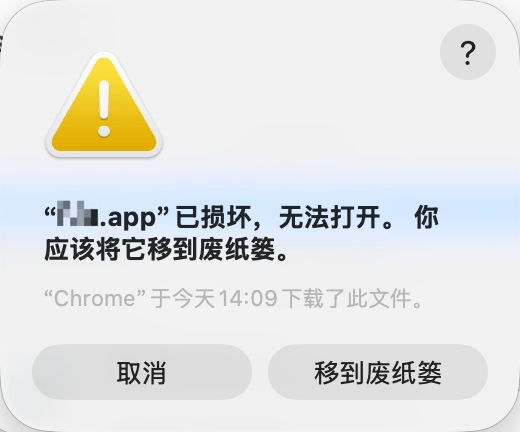
Click Cancel on this dialog. Do not click Move to Trash — you would have to download the app again.
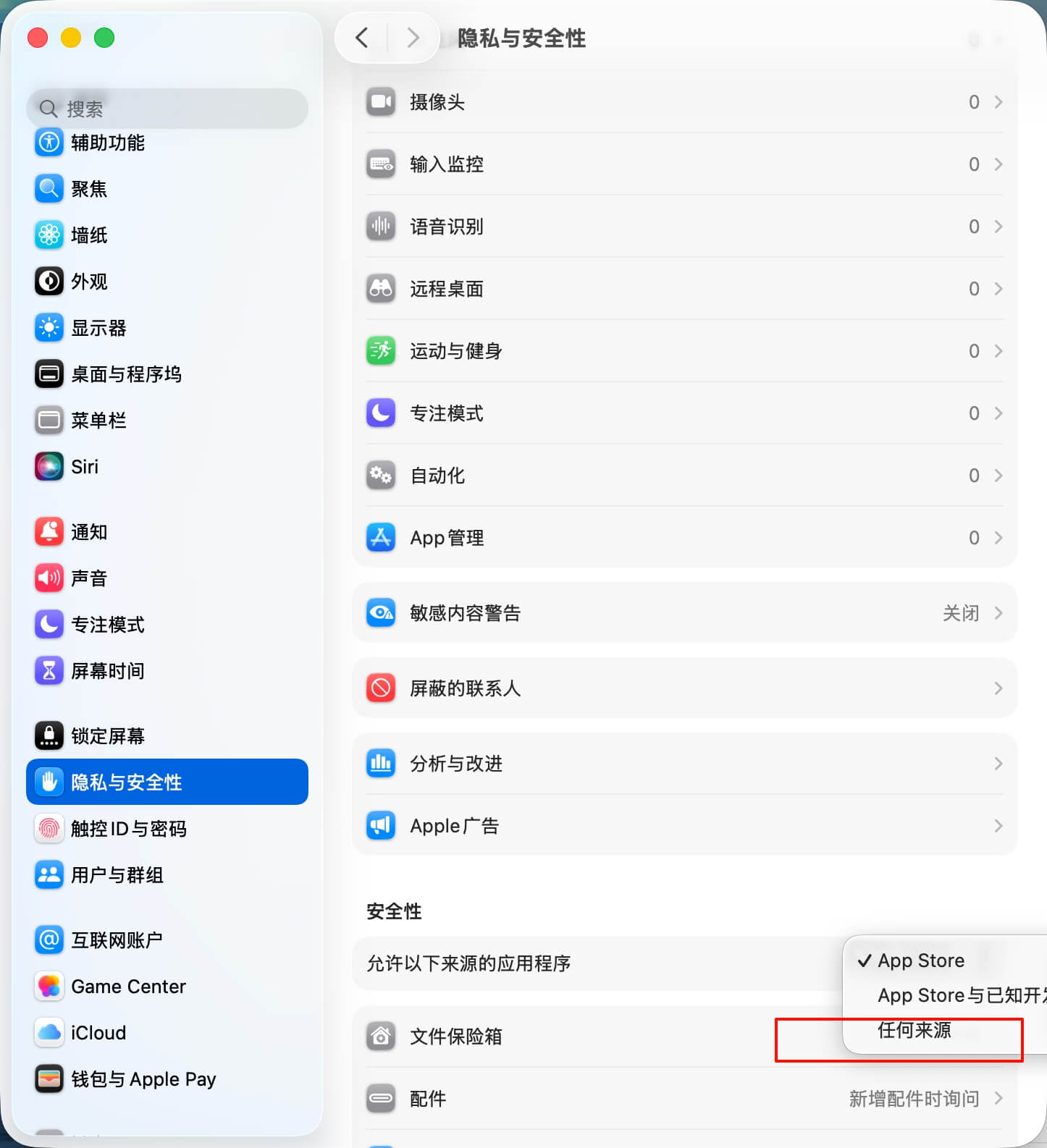
The screenshots in this guide come from a Chinese-language macOS install and a different unsigned app. The steps are identical; your dialogs will name Octop.app or OctopPet.app.
Step 1: Move the app into Applications
Install the app to a fixed location first, so the commands below work as written.
For the Octop desktop client, download the macOS asset that matches your Mac from the Octop v1.0.1 release: Octop-Desktop-darwin-arm64.dmg for Apple Silicon, or Octop-Desktop-darwin-amd64.dmg for Intel.
Double-click the .dmg to mount it, drag Octop.app (or OctopPet.app) into the Applications folder, then eject the disk image from the Finder sidebar.
Don't run the app straight from your Downloads folder. Once it is in Applications, its path is always /Applications/Octop.app or /Applications/OctopPet.app, so you can copy and paste the commands below verbatim.
Option A: Remove the quarantine flag (recommended)
This is the simplest and safest fix. It affects only the app you name, and leaves your system-wide security settings untouched.
Open Terminal
Press ⌘ + Space to open Spotlight, type Terminal, and press Return. You can also find it under Launchpad → Utilities → Terminal.
Run the command
If the app is in your Applications folder, paste the matching command into Terminal and press Return:
Enter your password
Terminal prompts for Password:. Type your Mac login password and press Return.
Terminal shows nothing at all while you type — no characters, no moving cursor. That is normal macOS behavior, not a freeze. Type the password blind and press Return.
Open the app
A successful command prints no output. Go back to Applications and double-click the app; it now opens normally.
If the app is not in Applications
You don't have to type the path by hand — drag the icon into Terminal:
Type the first half of the command
In Terminal, type the following with a trailing space, and don't press Return yet:
Drag the app into Terminal
In Finder, locate the app and drag its icon onto the Terminal window. Terminal appends the full path to the command. Press Return, then enter your login password.
Option B: Allow apps from anywhere
Use this if Option A wasn't enough, or if you are installing several unsigned apps at once.
This weakens Gatekeeper checks system-wide — macOS will stop blocking unsigned apps from any source. Restore the default afterwards, as described below.
Run the command in Terminal
You will be prompted for your login password again. Nothing appears as you type; just press Return when done.
Select Anywhere in System Settings
Open System Settings → Privacy & Security and scroll to the Security section. An Anywhere option now appears under Allow applications from. Select it.
Confirm the change
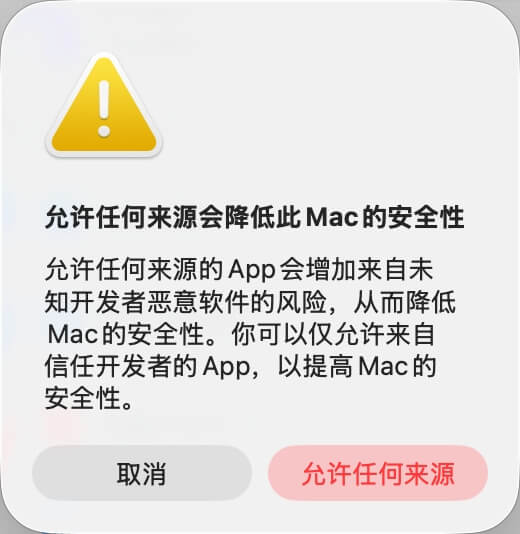
macOS warns you about the risk and asks you to authenticate again. Click Allow From Anywhere, then confirm with your password or Touch ID.
Open the app
Return to Applications and double-click the Octop client or OctopPet.
Restore the default afterwards
Once the app launches, put Gatekeeper back into its default state. Apps you have already installed keep working:
Troubleshooting
Terminal says: No such xattr: com.apple.quarantine
The app had no quarantine flag to begin with, or you already ran the command. This is not an error — just open the app.
There is no Anywhere option in System Settings
sudo spctl --global-disable did not actually run, usually because the password was mistyped. Run it again in Terminal, remembering that nothing is displayed while you type. Then check System Settings → Privacy & Security once more.
The dialog says the developer cannot be verified, not damaged
That case is easier and needs no terminal. In Finder → Applications, right-click the app, choose Open, then click Open again in the confirmation dialog.
If that is still blocked, go to System Settings → Privacy & Security, find the blocked app in the Security section, and click Open Anyway next to it.
A new version shows the damaged dialog again
Every fresh download carries a new quarantine flag, so this is expected. Run the Option A command again against the new version.
Command not found, or the path contains spaces
Check that the command reads xattr and nothing else. If the app's path contains spaces, wrap it in quotes — for example sudo xattr -rd com.apple.quarantine "/Applications/My Apps/Octop.app". Dragging the app icon into Terminal avoids typing the path.
A note on safety
Bypassing Gatekeeper is only reasonable when you trust where the installer came from. Download the client and the desktop pet from official Octop release channels only — never from a third-party mirror.
Option A touches a single app and is the better default. Option B opens up source checks for the whole system, so restore the default as soon as you are done.
Only need Octop on a server or from the command line? The desktop client is optional — follow the Quickstart to install the octop CLI and use the web UI in your browser.