Remote desktop: control the Octop host
Remote desktop shows the Octop host's screen in the browser so you can click, drag, and type. Use it when you need the full desktop — not just the built-in browser or terminal.
This page is for administrators. If you do not see it, ask an admin.
Connect
Open Server
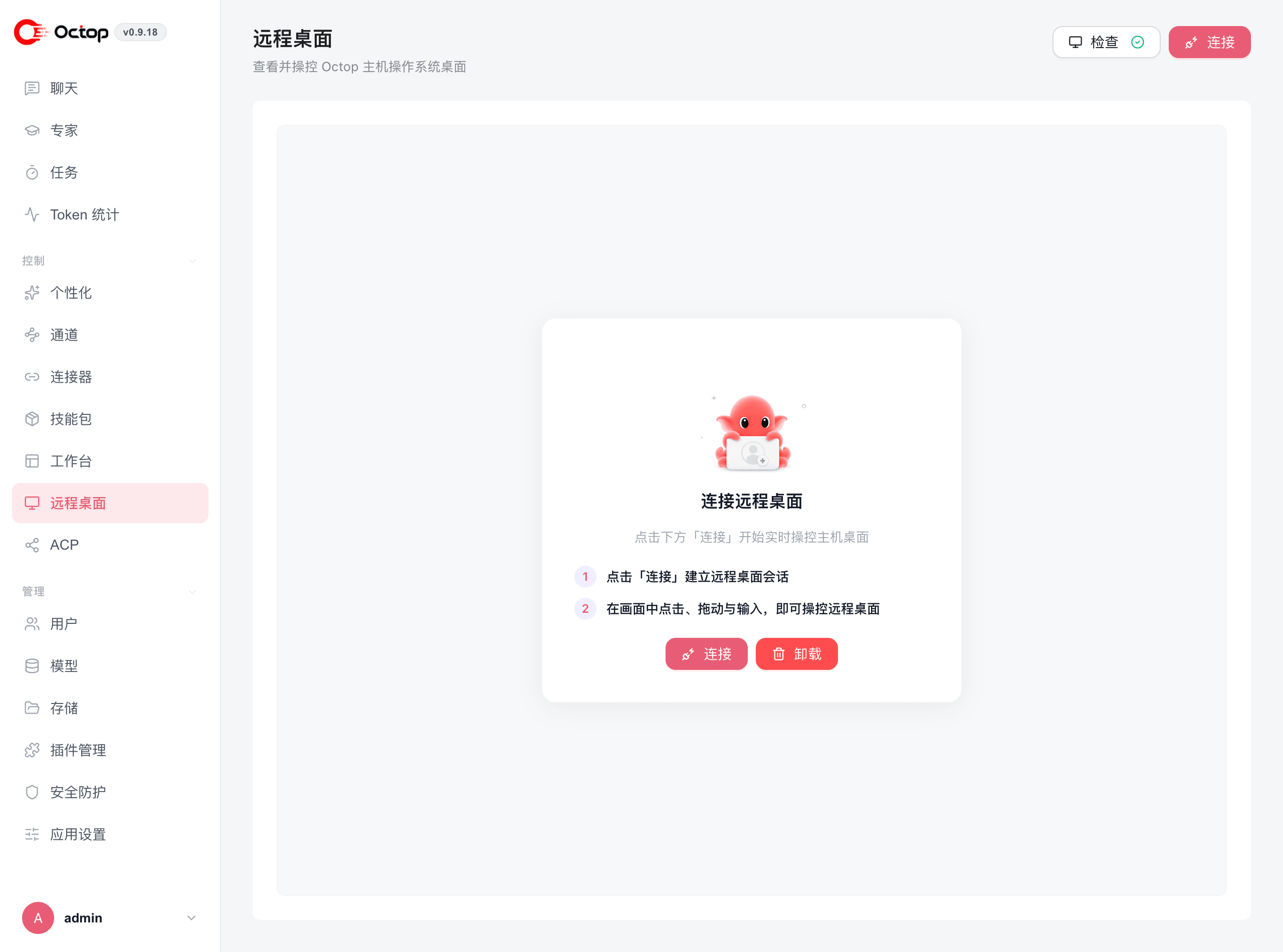
In the sidebar, open Remote Desktop, then select the Server tab.
Check the environment
Click Check. If something is missing, follow the dialog to install it.
- On a Linux server with no graphical session, Octop can install a virtual desktop for you. Enterprise Linux 10 and newer cannot install that desktop.
- On macOS, grant Screen Recording and Accessibility to the app or terminal that runs Octop, then restart Octop and click Recheck.
- On Windows, Octop captures the host screen directly.
Connect and control
Click Connect. Use the canvas like a normal desktop. You can change Resolution and Frame rate, send shortcuts such as App menu, Terminal, or Files, and enter Fullscreen.
Limits
Up to three people can be connected at the same time. If you see a limit warning, close another session and try again.
To control a phone instead, see Remote phone. Browser and terminal stay on Workbench.